
With the Copy Management feature in portier Vision, you can manage individual key copies. This includes deleting copies or updating their status (e.g., from “lost” back to “in stock”).
1. Open Copy Management
-
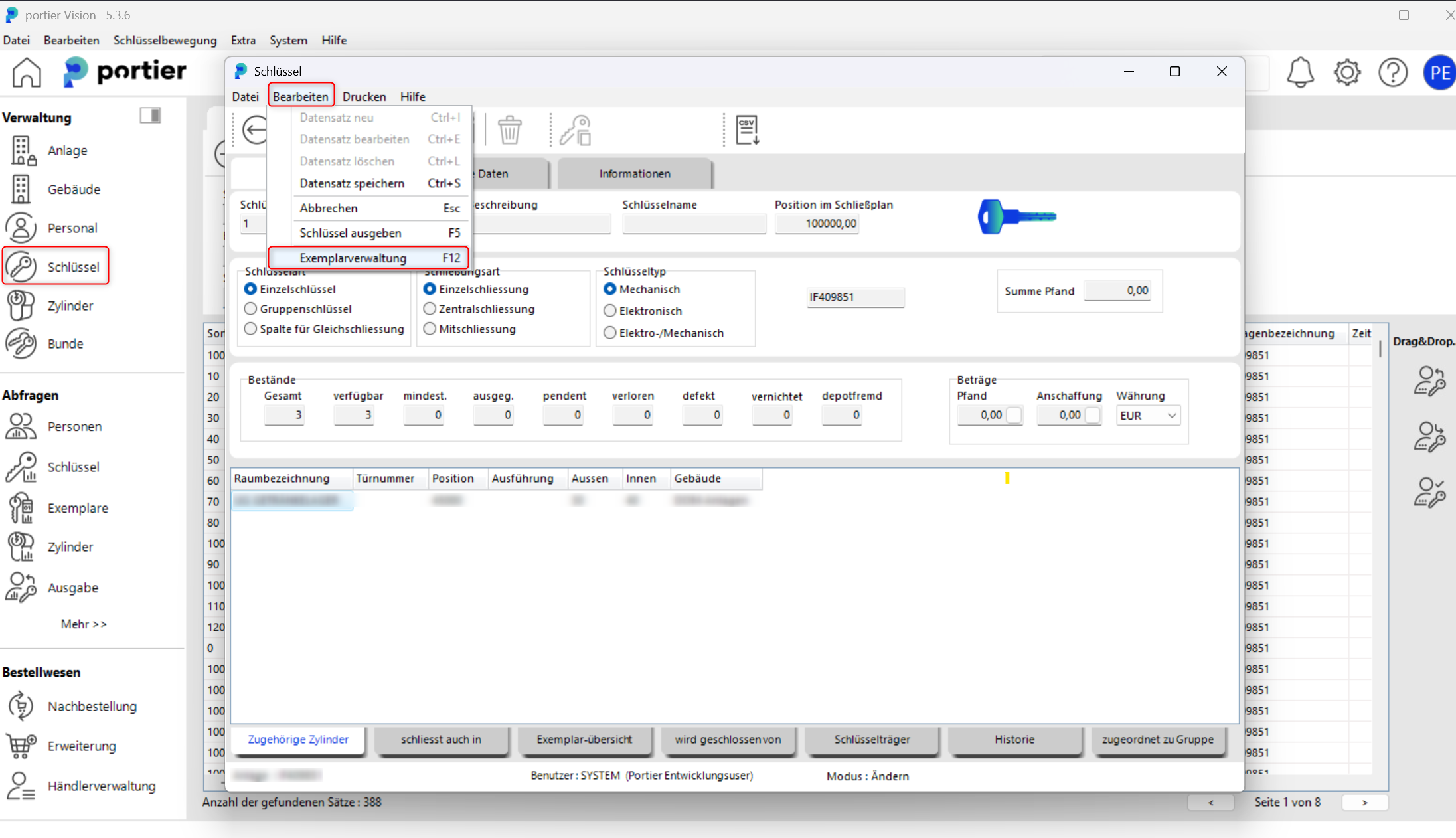
Open the key mask in portier Vision.
-
Click Edit and then select Copy Management.
Alternatively, you can press F12.
2. Delete a Copy
-
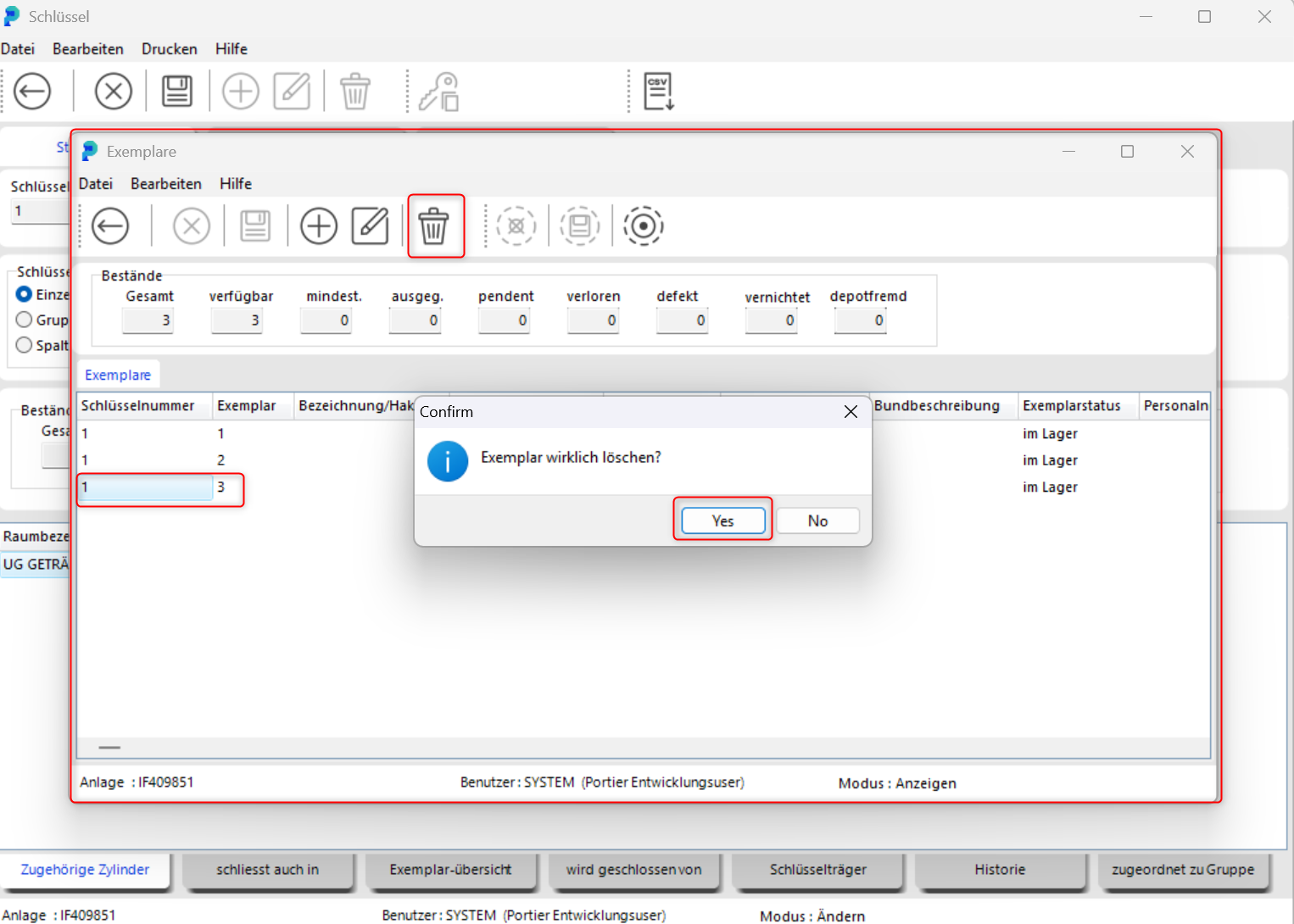
In the copy window, select the copy you want to delete.
-
Click the trash bin icon.
-
Confirm the prompt with Yes to permanently delete the copy.
3. Change the Status of a Copy (e.g., “lost” → “in stock”)
You can also update the status of a key copy in this window.
-
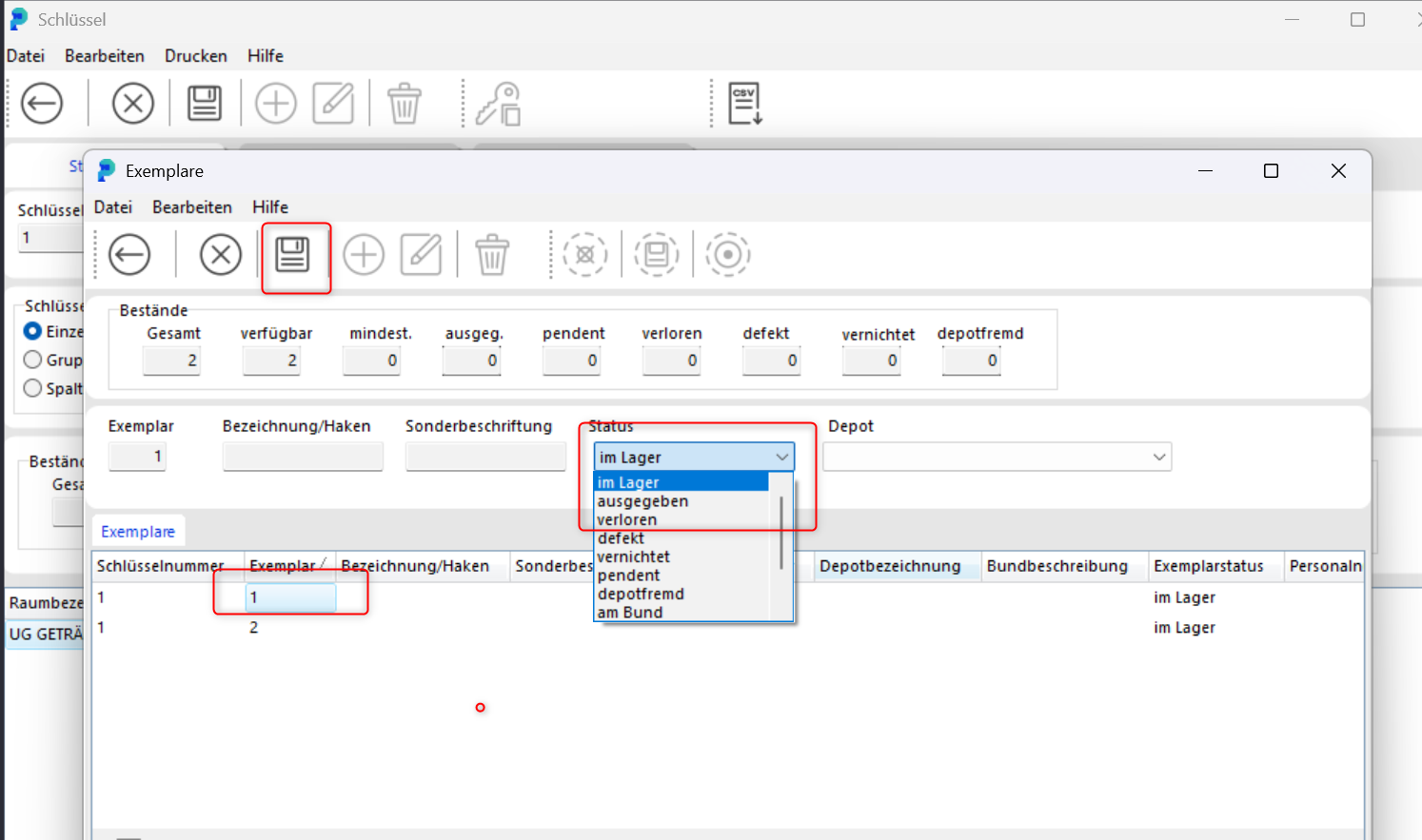
Click the pencil icon (Edit).
-
Select the copy you want to update.
-
Change the status, for example from lost back to in stock, and save the change.
Note
Please only delete or modify copies if this is intended in your organization, as changes may affect audit trails and traceability.